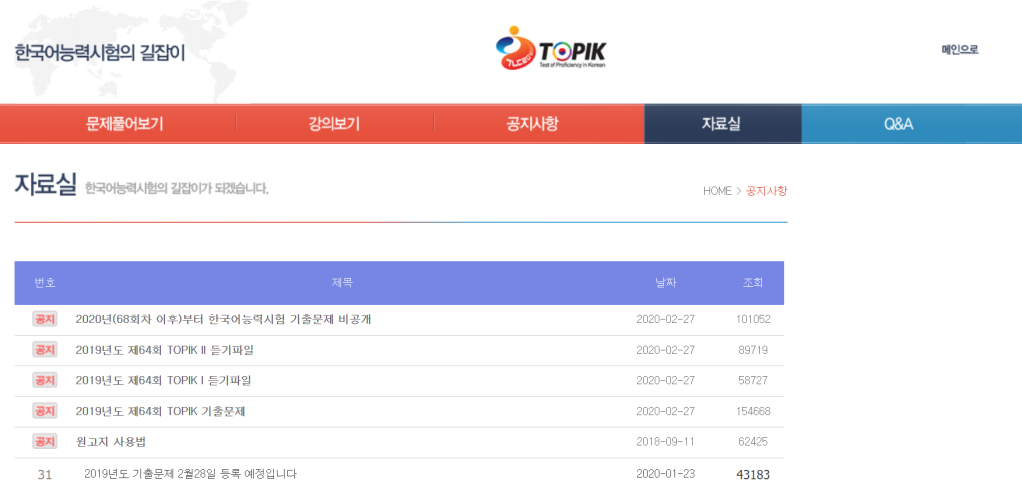
準備了這麼多次的韓文考試,也寫了很多韓文題目,但覺得幫助最多的還是狂寫考古題,雖然自2020年以後Topik就不再公布新的考古題,但是仍然可以透過練習舊題目提高考試熟悉度喔!
官方下載點
名詞解析
듣기파일:聽力檔案,通常下載下來會是zip壓縮檔
기출문제:考古題題目,檔案為PDF檔
듣기통합:聽力譯文
듣기,쓰기:聽力、寫作測驗卷
읽기:閱讀測驗卷
정답 및 채점기준표:解答

準備了這麼多次的韓文考試,也寫了很多韓文題目,但覺得幫助最多的還是狂寫考古題,雖然自2020年以後Topik就不再公布新的考古題,但是仍然可以透過練習舊題目提高考試熟悉度喔!
듣기파일:聽力檔案,通常下載下來會是zip壓縮檔
기출문제:考古題題目,檔案為PDF檔
듣기통합:聽力譯文
듣기,쓰기:聽力、寫作測驗卷
읽기:閱讀測驗卷
정답 및 채점기준표:解答


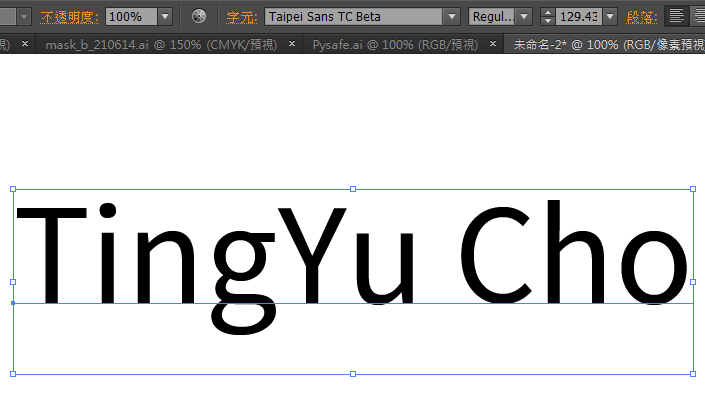
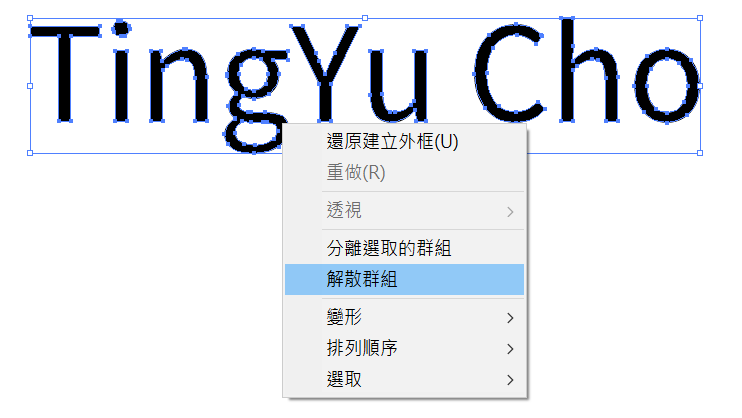
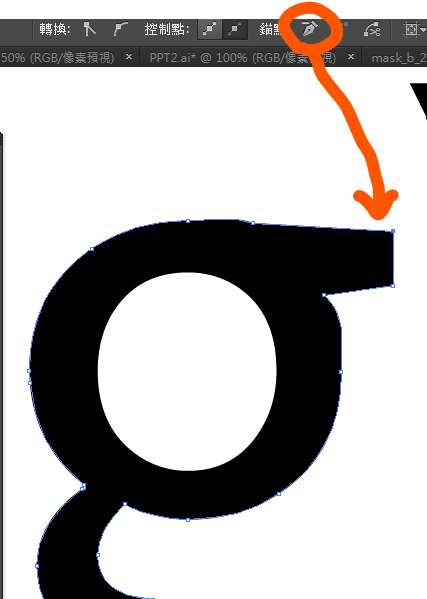
有時候想要做一些Logo需要一些特殊設計過的字體,這時候可以使用Illustrator的直接選取工具來完成。





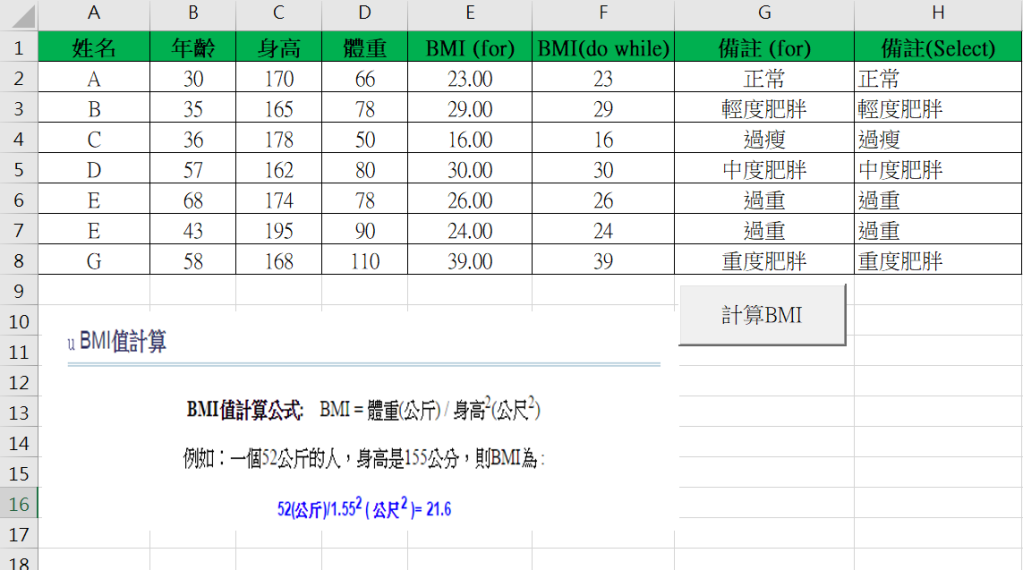
計算判斷式可以使用的迴圈有兩種,若有確定的範圍可以使用for迴圈,若資料量較大或隨時會更新則可使用while迴圈。
r = 0 '預設值

For r = 2 To 8 '計算範圍

    w = Cells(r, 4) '體重
    l = Cells(r, 3) '身高
    bmi = Math.Round(w / (l * 0.01) ^ 2) '計算BMI
    Cells(r, 5) = bmi '填入

    '判斷BMI

    If bmi >= 35 Then
        Cells(r, 7) = "重度肥胖"
    ElseIf bmi >= 30 Then
        Cells(r, 7) = "中度肥胖"
    ElseIf bmi >= 27 Then
        Cells(r, 7) = "輕度肥胖"
    ElseIf bmi >= 24 Then
        Cells(r, 7) = "過重"
    ElseIf bmi >= 18.5 Then
        Cells(r, 7) = "正常"
    Else
        Cells(r, 7) = "過瘦"
    End If
Next r 'For迴圈結尾
On Error Resume Next '

r = 2

Do While Not IsEmpty(Cells(r, 1))

    w = Cells(r, 4) '體重
    l = Cells(r, 3) '身高
    bmi = Math.Round(w / (l * 0.01) ^ 2) '計算BMI
    Cells(r, 6) = bmi '填入

    Select Case bmi
        Case Is < 18.5
            Cells(r, 8) = "過瘦"
        Case Is < 24
            Cells(r, 8) = "正常"
        Case Is < 27
            Cells(r, 8) = "過重"
        Case Is < 30
            Cells(r, 8) = "輕度肥胖"
        Case Is < 35
            Cells(r, 8) = "中度肥胖"
        Case Else
            Cells(r, 8) = "重度肥胖"
    End Select

    r = r + 1
Loop

網路上有很多可以下載Youtube影片的辦法,但有些需要另外下載軟體才可以下載影片,最近剛好有學到可以透過Pytube來下載影片,只要幾行程式碼就可以輕鬆將影片下載下來了!
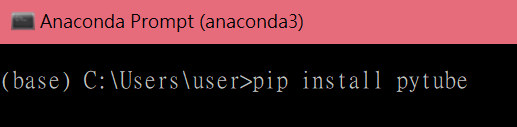
pip install pytube
我用的程式軟體是Anaconda,也可以用其他可執行Python的程式軟體執行。
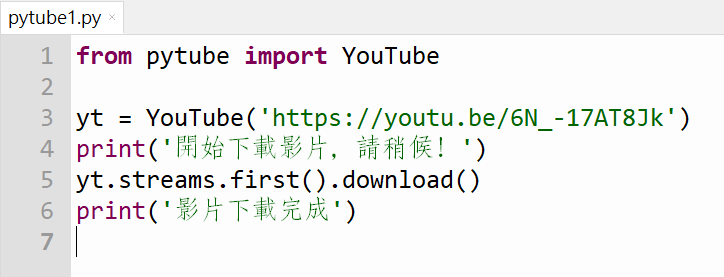
from pytube import YouTube
yt = YouTube(‘ Youtube網址 ‘)
print(‘開始下載影片,請稍候!’)
yt.streams.first().download()
print(‘影片下載完成’)

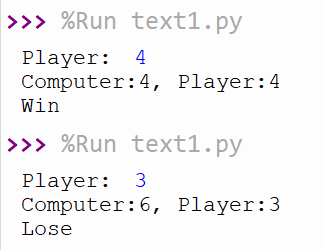
透過Random套件,可以寫成一個簡單的猜數字遊戲
import random
a = random.randint(0,10)
b = int(input(“Player: ”))
if a==b:
print(“Computer:%s, Player:%s”%(a,b))
print(“Win”)
else:
print(“Computer:%s, Player:%s”%(a,b))
print(“Lose”)

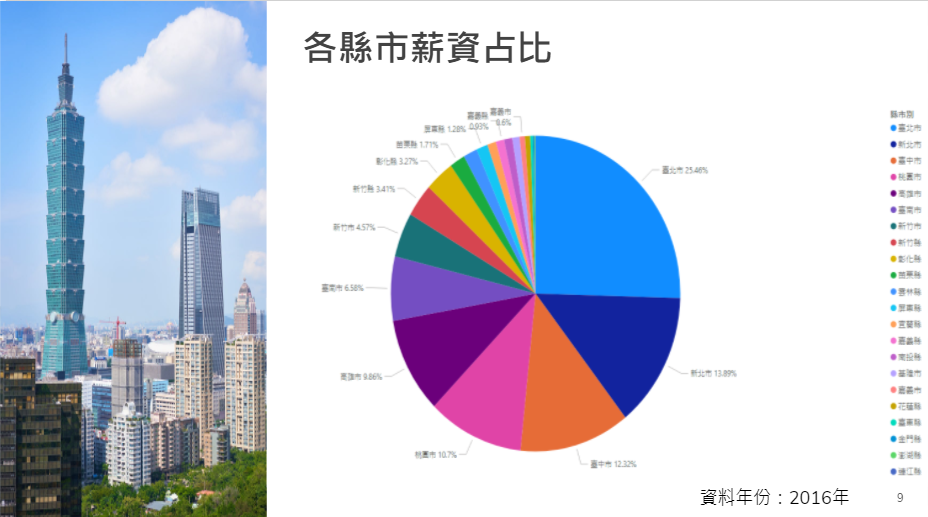
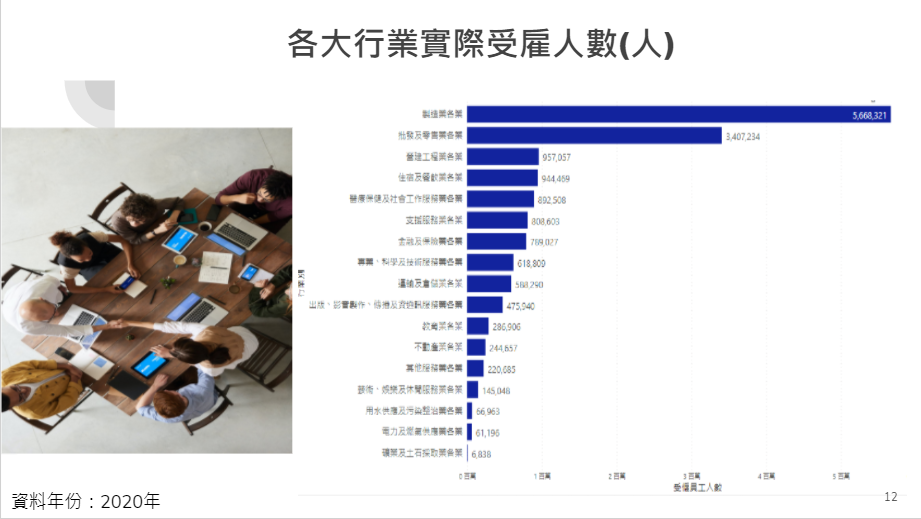
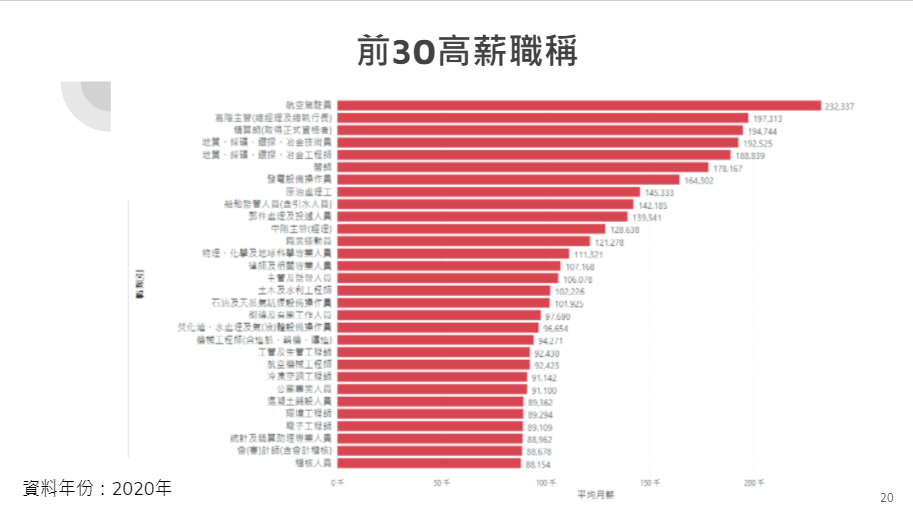
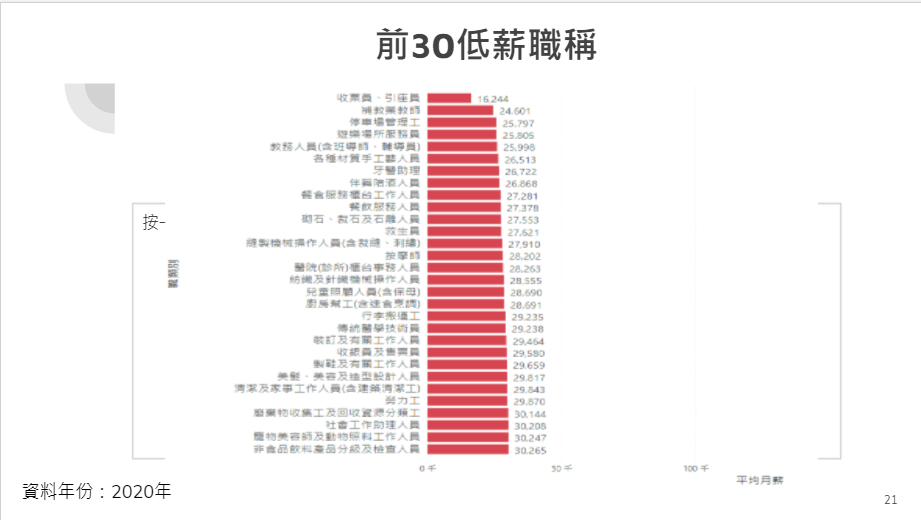
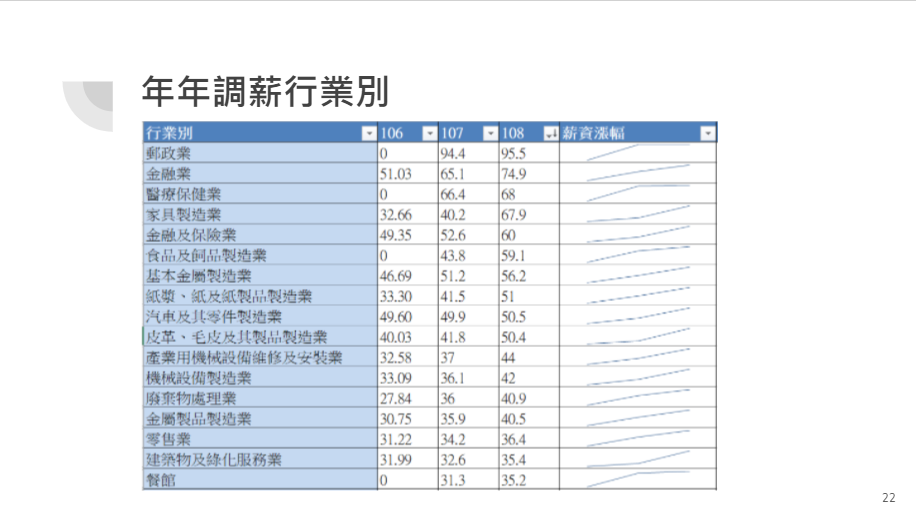
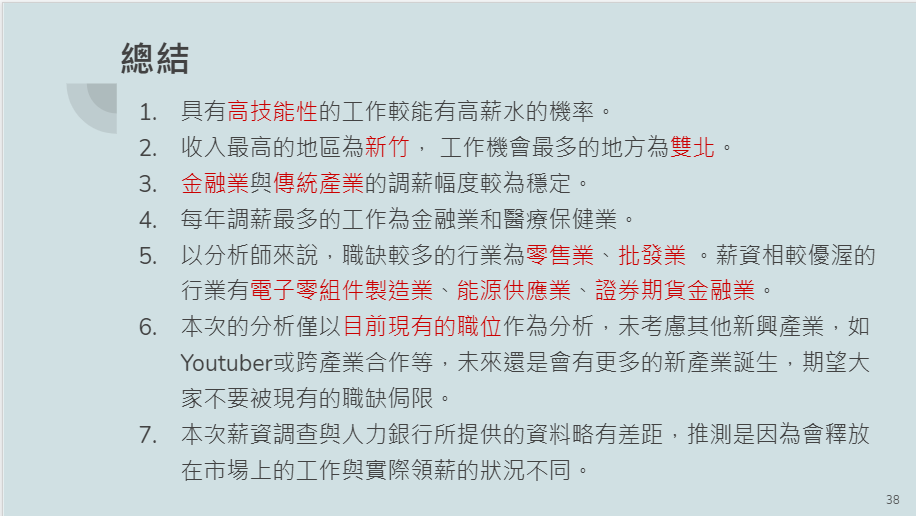
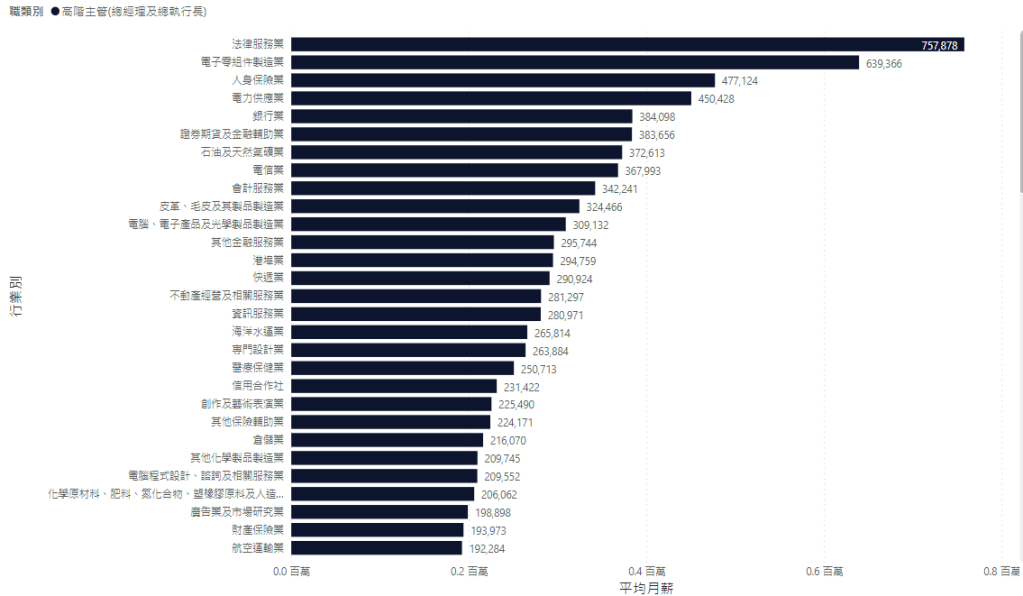
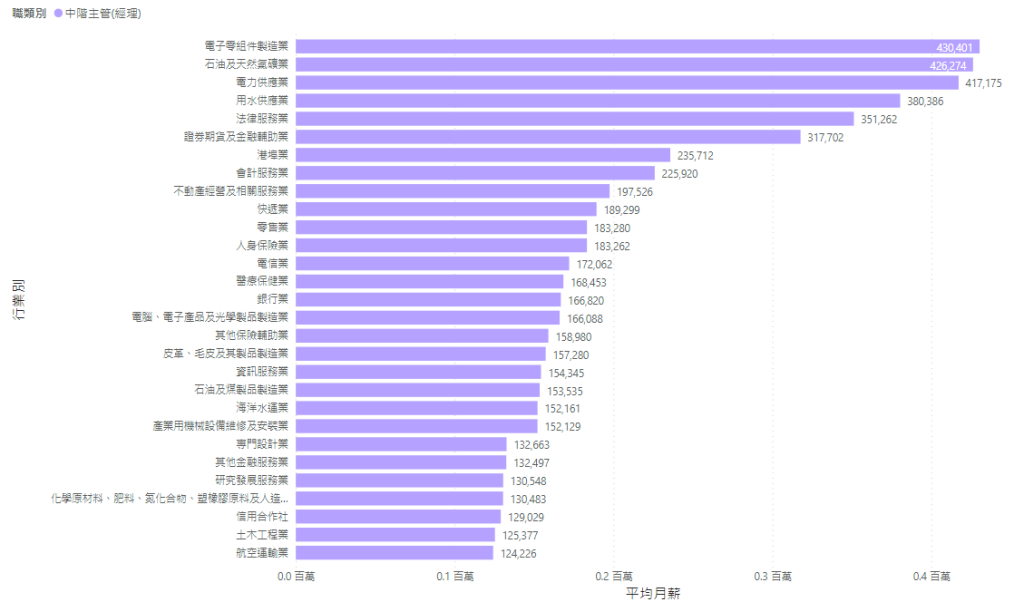
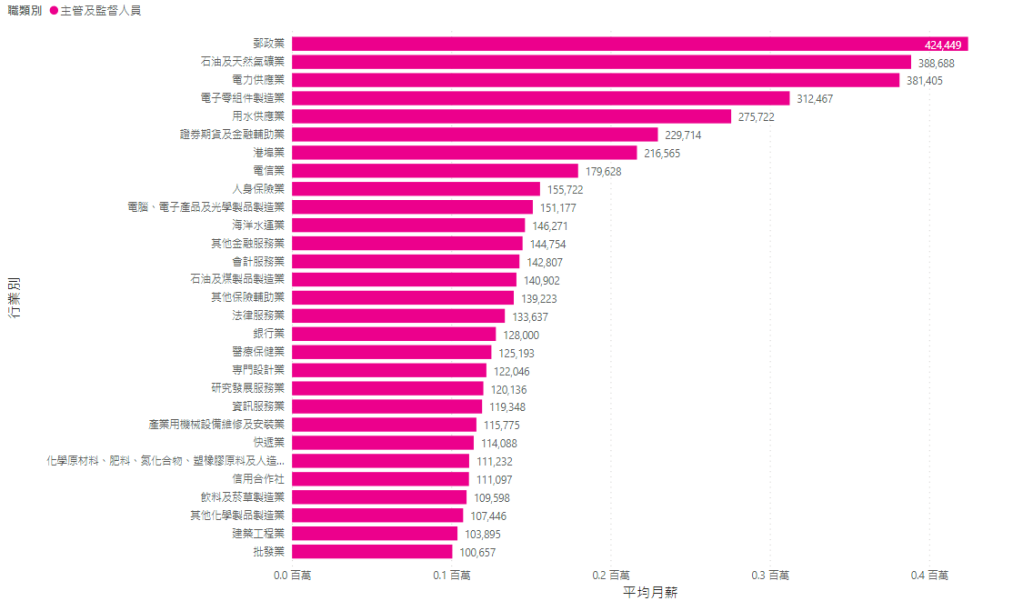
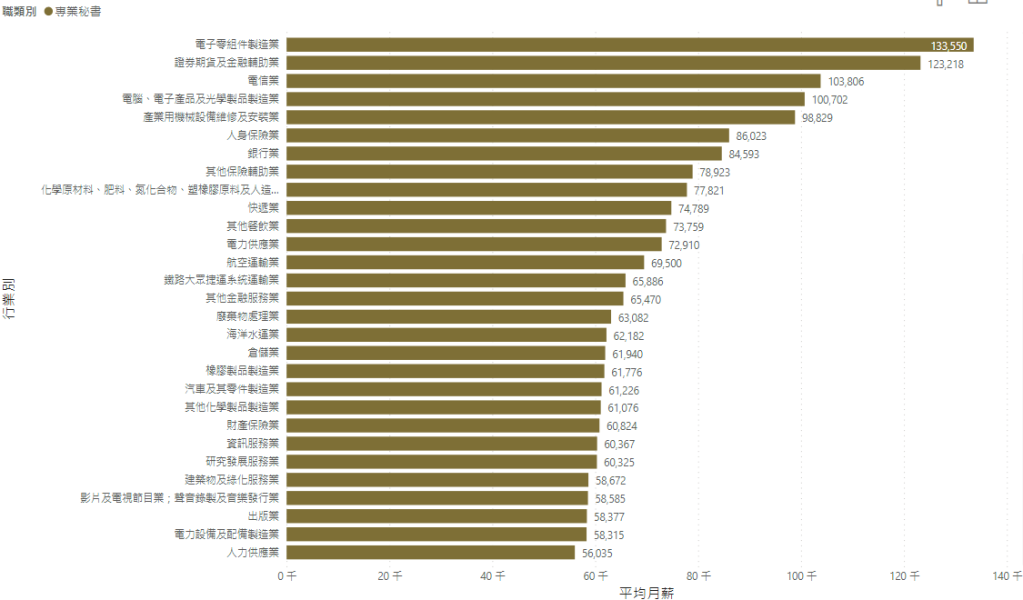
最近待業上了政府補助的課,今天完成了其中一個專題報告,我上的課是大數據行銷分析,這次的專題報告跟組員一起討論了決定針對班上的同學做一份未來求職分析,也因為做了這個報告,才發現網路上有超多資料可以做分析,也學會了用Power BI做視覺化的呈現,這堂課真的是學到了好多實用的技能,雖然未來不一定會往分析師的方向前進,但這些技能到哪裡都可以發揮,其他組的同學們也做了婚姻、農業、水利、電力等各方面的分析,也從其他人身上學到了很多,整體來講覺得花這兩個月上課相當值得。
感謝我的組員們這一兩個禮拜的辛苦,我們一開始找的資料量其實並不多,只是大致擬了可以發展的方向,他們幫忙補充了很多資料,讓整個報告變得更完整,以下分享一些我們的部份報告內容,圖表皆是以Power BI繪製而成。
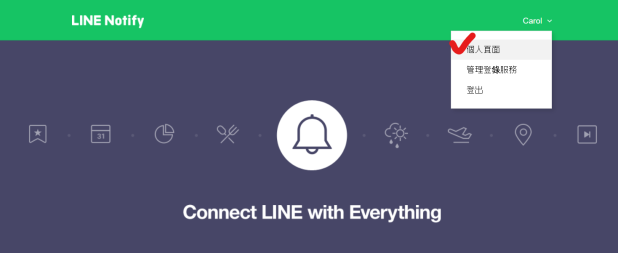
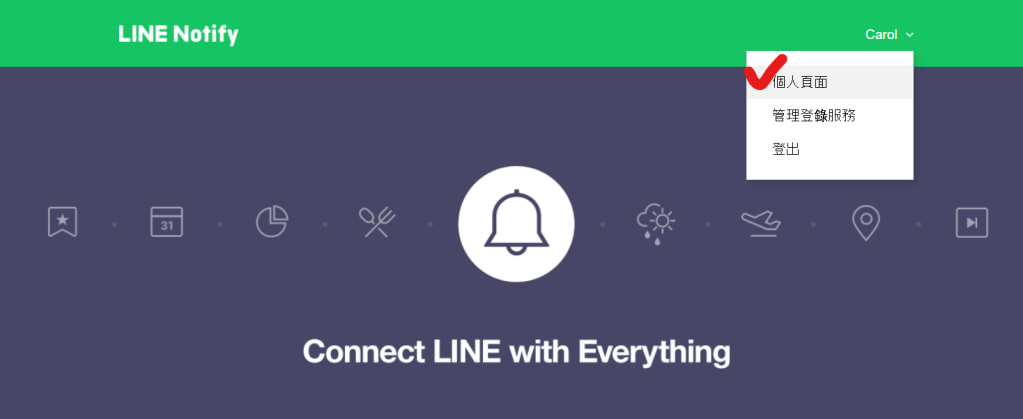
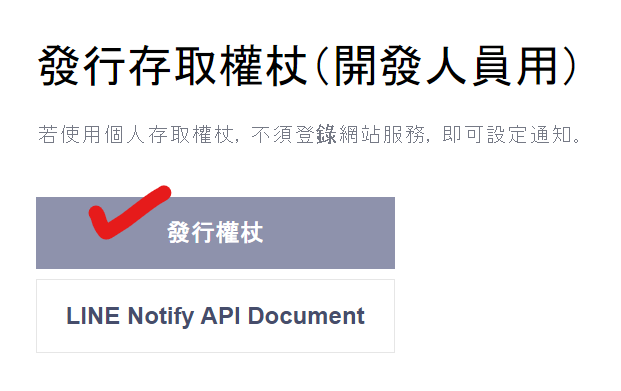
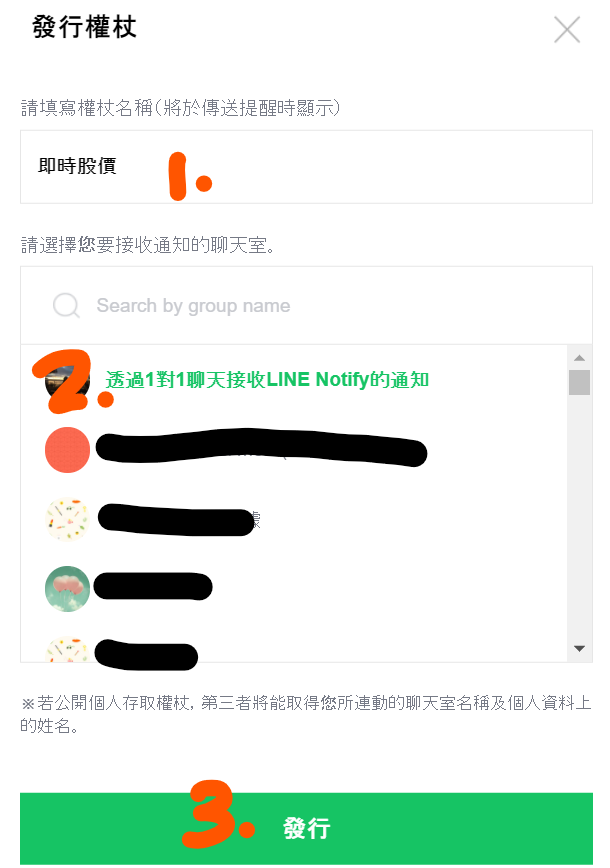
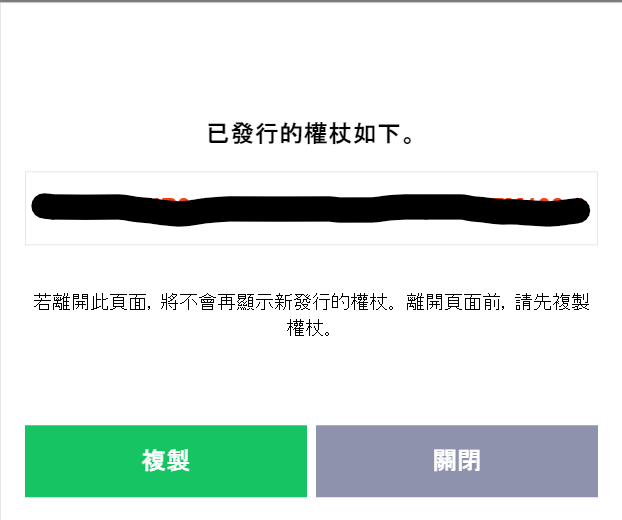
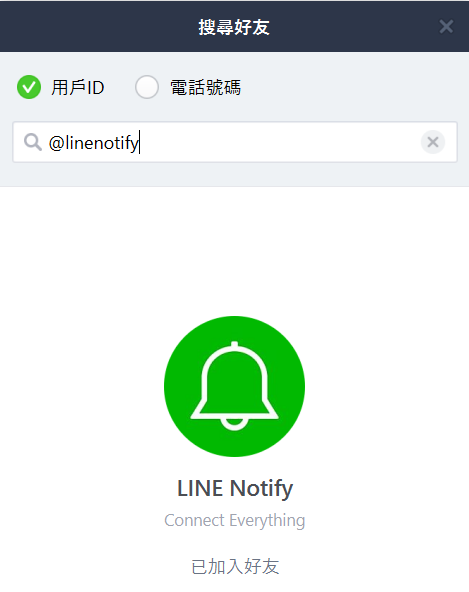
透過Line Notify的功能,可以結合Python/VBA等程式,設定像即時股票等即時通知,這裡先介紹怎麼申請自己的權杖,以及用Python程式做連動成功測試。

import requests
msg = ‘這是 LINE Notify 發送的訊息。’
token = ‘ 你申請的權杖號碼 ‘ #權杖
headers = {
“Authorization”: “Bearer ” + token,
“Content-Type” : “application/x-www-form-urlencoded”
}
payload = {‘message’: msg}
notify = requests.post(“https://notify-api.line.me/api/notify”, headers = headers, params = payload)
if notify.status_code == 200:
print(‘發送 LINE Notify 成功!’)
else:
print(‘發送 LINE Notify 失敗!’)

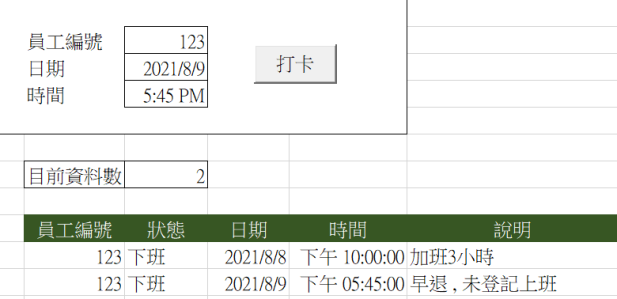
用VBA寫了一個簡單的打卡系統,可以判斷上班遲到早退以及加班時數
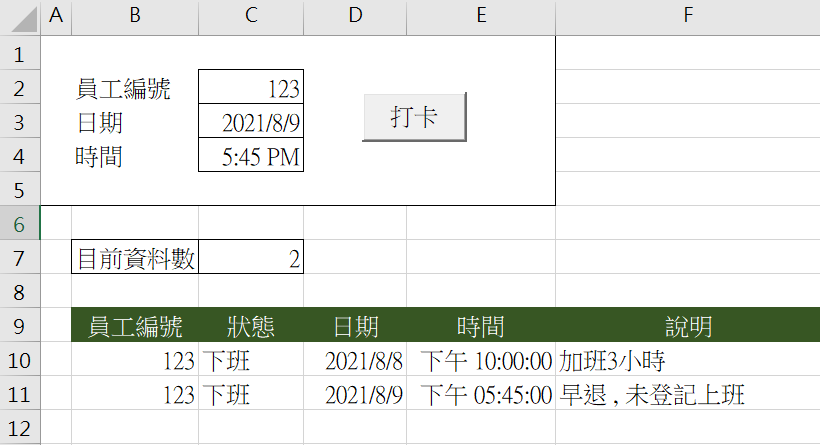
Private Sub CommandButton1_Click()
'r=>要準備寫資料的那一行 (ROW)
Dim r As Long
Dim d As Date
Dim t As Dated = Range("C3")
t = Range("C4")


'如果現在沒有資料,那麼r就從第二行開始寫 (r=2)
If Cells(10, 2) = "" Then
    r = 10
Else
    '如果有資料,找到最後一筆資料,並取得他的ROW
    Range("B9").Select
    Selection.End(xlDown).Select
    r = Selection.Row + 1

End If


'資料是從 r 開始寫入
Cells(r, 2) = Range("C2")
Cells(r, 4) = Range("C3")
Range("D" & r).Select
Selection.NumberFormatLocal = "yyyy/m/d"
Cells(r, 5) = Range("C4")
Range("E" & r).Select
Selection.NumberFormatLocal = "[$-x-systime]h:mm:ss AM/PM"

'顯示目前多少資料
Range("C7") = r - 10 + 1


'判斷上下班

If (DateDiff("h", t, "12:00:00")) > 0 Then
    Cells(r, 3) = "上班"
Else
    Cells(r, 3) = "下班"
End If

If (DateDiff("h", t, "9:30:00")) < 0 And (DateDiff("h", t, "9:00:00")) > 0 Then Cells(r, 6) = "遲到"
If (DateDiff("h", t, "18:00:00")) > 0 And (DateDiff("h", t, "12:00:00")) < 0 Then Cells(r, 6) = "早退"
If (DateDiff("h", t, "18:00:00")) < -1 And (DateDiff("h", t, "9:00:00")) < 0 Then
    out = -DateDiff("h", t, "19:00:00")
    Cells(r, 6) = "加班" & out & "小時"
End If


If r <> 10 And Cells(r - 1, 3) = "上班" And Cells(r, 3) = "上班" And DateDiff("d", d, Cells(r - 1, 4)) < 0 Then
    If Cells(r, 6) <> "" Then
        Text = Cells(r, 6)
        Cells(r, 6) = Text & " , 未登記下班"
    Else
        Cells(r, 6) = "未登記下班"
    End If

End If

If r <> 10 And Cells(r - 1, 3) = "上班" And Cells(r, 3) = "上班" And DateDiff("d", d, Cells(r - 1, 4)) = 0 Then
    Cells(r, 2) = ""
    Cells(r, 3) = ""
    Cells(r, 4) = ""
    Cells(r, 5) = ""
    Cells(r, 6) = ""
    MsgBox ("重複打卡")

End If

If r <> 10 And Cells(r - 1, 3) = "下班" And Cells(r, 3) = "下班" And DateDiff("d", d, Cells(r - 1, 4)) < 0 Then

    If Cells(r, 6) <> "" Then
        Text = Cells(r, 6)
        Cells(r, 6) = Text & " , 未登記上班"
    Else

        Cells(r - 1, 6) = "未登記上班"
    End If

End If

If r <> 10 And Cells(r - 1, 3) = "下班" And Cells(r, 3) = "下班" And DateDiff("d", d, Cells(r - 1, 4)) = 0 Then
    Cells(r, 2) = ""
    Cells(r, 3) = ""
    Cells(r, 4) = ""
    Cells(r, 5) = ""
    Cells(r, 6) = ""
    MsgBox ("重複打卡")

End If
End Sub
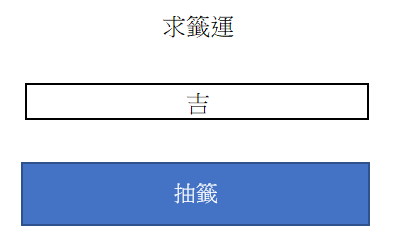
用Excel VBA Rnd亂數以及Select Case語法,可以寫一個簡單的抽籤跟抽獎程式
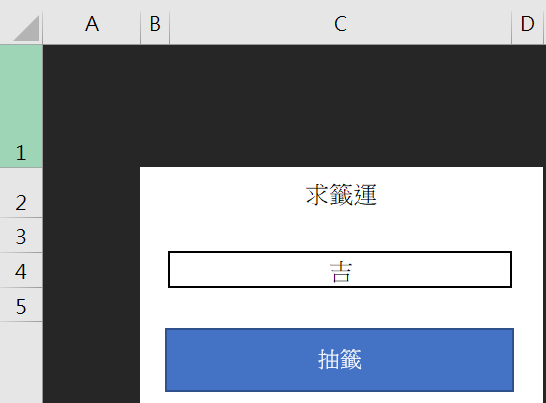
Public Sub button1()
Dim r As Long

r = Int(Rnd * 10) + 1 ' 1~10

Select Case r

    Case 1: 'r=1
        Range("C4") = "大凶"
    Case Is <= 3
        Range("C4") = "凶"
    Case Is <= 7
        Range("C4") = "平"
    Case Is <= 9
        Range("C4") = "吉"
    Case Else
        Range("C4") = "大吉"

End Select
End Sub
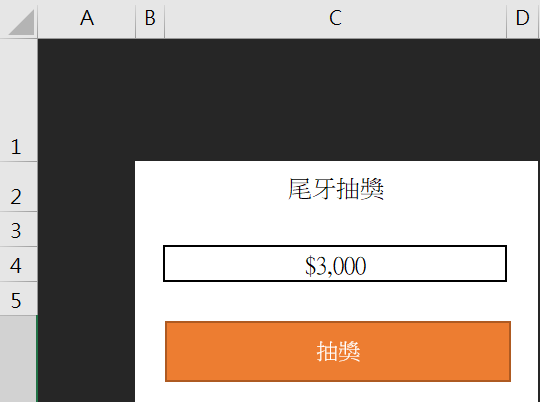
Public Sub button2()
Dim r As Long

r = Int(Rnd * 101)

Select Case r
    Case Is <= 1 ' r=0, r=1 ===> case 0 to 1  ===> case 0,1  => case 0: case 1:
        Range("C4") = "GOGORO"
    Case Is <= 10
        Range("C4") = "機票"
    Case Is <= 30
        Range("C4") = "$6000"
    Case Is <= 60
        Range("C4") = "$3000"
    Case Else
        Range("C4") = "$1000"
End Select
End Sub

 Tingyu’s Learning Memo